Marquee Français

Marquee — your desk, in lights.

A 1920 × 720 touchscreen: your music and its spectrum, your projects in progress, and keys that drive your Macs. Its interface speaks French.

Try it Download Guide

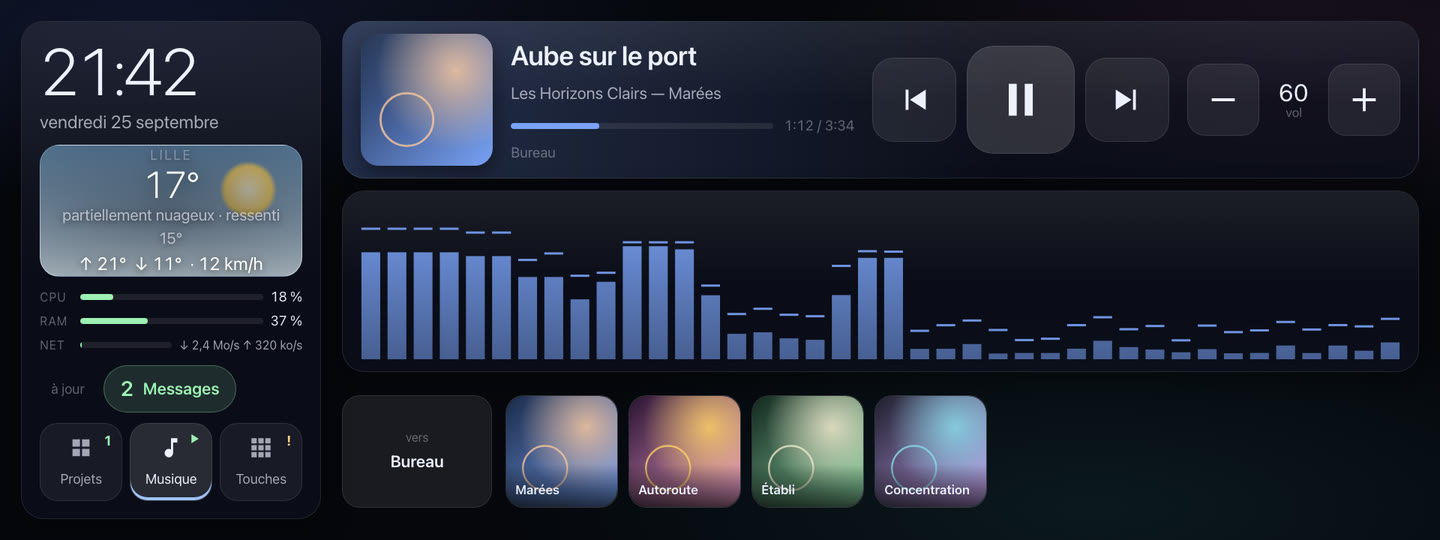
Marquee's Music page: the time, the weather in Lille, the machine's load, the track “Aube sur le port” with its spectrum, and the favorites.
The Music page
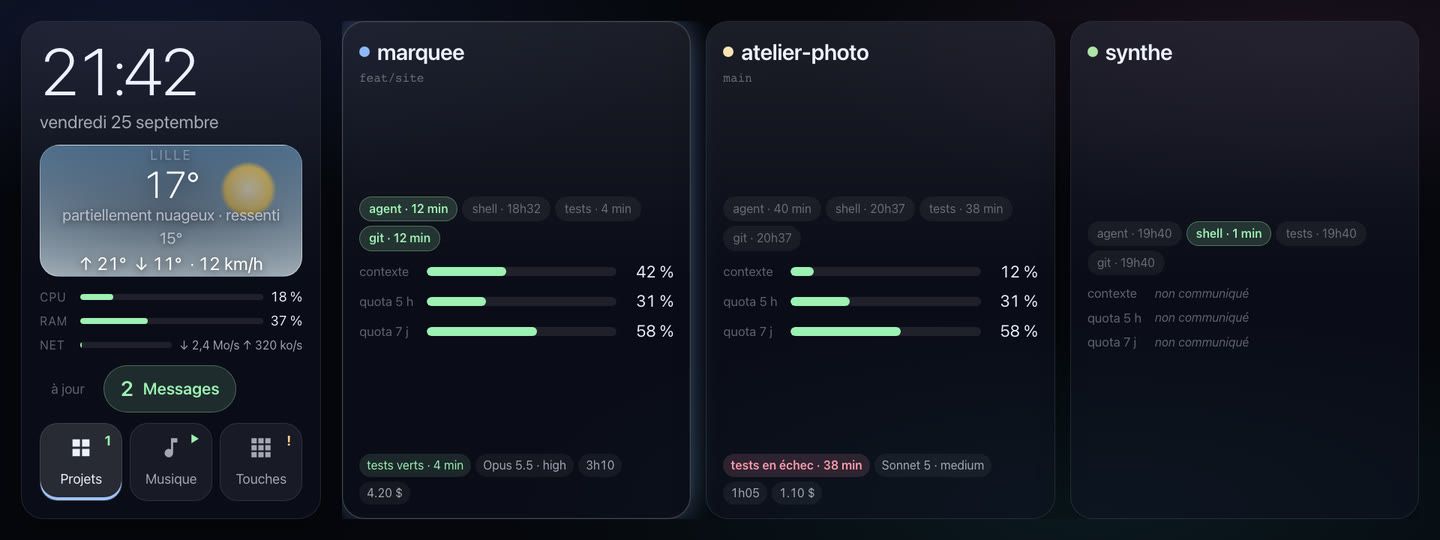
The Projects page: three work sessions, each with its branch, the age of its latest activity, its tests and its gauges.
The Projects page

One glance, and it's all there.

Set below your monitor, Marquee reads from across the room, no touching needed: the essentials are big, and the details wait until you lean in.

The time
Big, with the date. Readable from your chair, from the far end of the desk.
The weather
Your town's: temperature, feels-like, low, high and wind.
The machine
The load on the one running the screen: processor, memory, network.
Your projects
Your gproj work sessions, one card per project: the branch, the agent, the tests, git, each with its age.
Your music
The track playing, its cover art, its spectrum, and the speaker playing it.

See it in the demo, and in the guide's Projects chapter.

Your music, front and center.

Music Assistant plays, Marquee shows and controls. The cover art gets the room it deserves, and the whole interface takes on its colors.

The cover tints everything
The screen's accent follows the track. In the demo, change tracks: the light on this page changes with it.
Controls under your finger
Play, pause, previous, next, volume: keys at least 96 pixels across, made for thumbs.
Your favorites
A row of covers. One tap, and the album or the radio station starts.
Your speakers, your Mac included
Pick where the music plays: the study, the living room, or your MacBook.

Get your hands on it in the demo, and set it up in the Music chapter.

Sound you can see.

Under the cover art, the sound draws itself live, in step with what the speaker is playing.

Three visualizations
A spectrum, a bar graph, a VU meter needle. Swipe along the strip to go from one to the next.
Two color schemes
Monochrome, in the cover's hue, or green, yellow and red by level. A long press switches.
Tuned to your speaker
The lag between sound and picture is set once, from your speaker's latency.

Swipe the strip in the demo; the gestures are in the Music chapter.

Keys for your Macs.

A key opens an app or runs a script on your Mac. You watch it set off, get to work, finish: the screen follows what's really happening.

An app, a script

Terminal opens at a touch, and keeps a line lit while it's open. Build runs make on your Mac: the key goes through “en cours…” (running), then holds “fait” (done) with the age of the result.

Two presses for what matters

A sensitive command won't go off at a brush of the finger: the first press arms the key, a second one within three seconds fires it. And if it fails, the screen tells you why.

Three lines of JSON, one key.

{ "id": "build", "libelle": "Build", "icone": "🔨",
  "commande": ["/usr/bin/make", "-C", "/Users/me/code/my-project", "build"],
  "delai": 900 }

In your Mac's config.json. The command is a list of arguments, run without a shell. The file is reread as soon as it changes; if it's broken, the screen shows the error and keeps the previous keys.

Press Build in the demo; it's all in the Creating your keys and Installing the Mac service chapters.

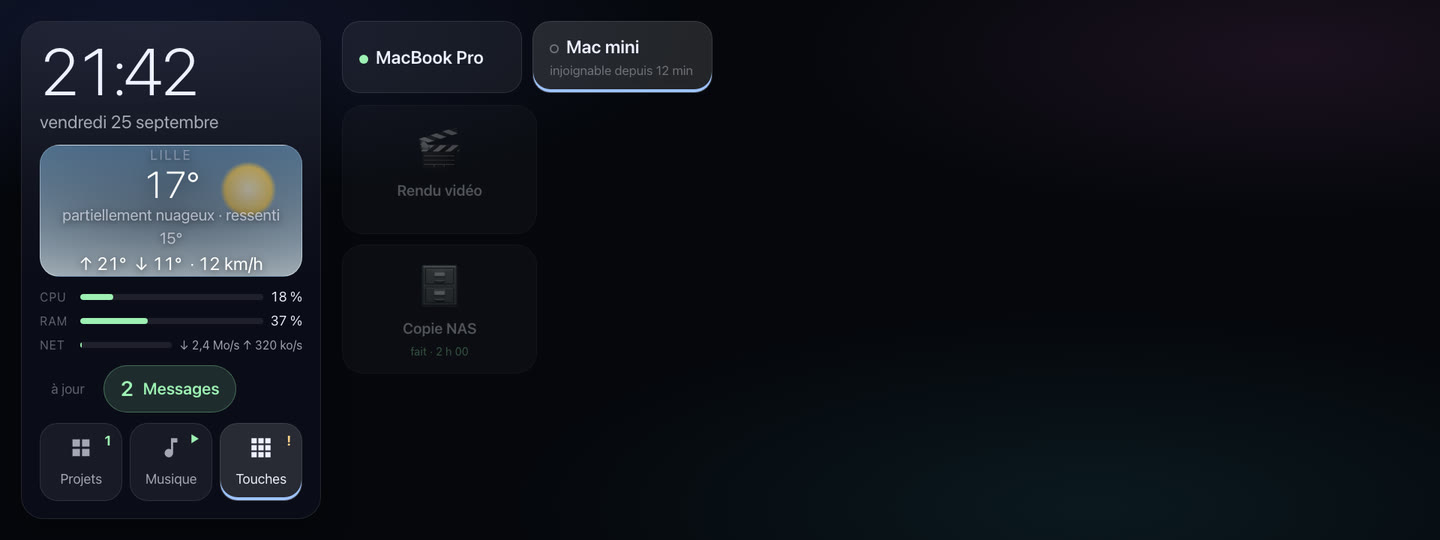
The Keys page while the Mac mini sleeps: its badge reads “injoignable depuis 12 min” (unreachable for 12 min) and its keys are dimmed.

It never lies to you.

Your Mac nods off? The screen doesn't pretend. It writes injoignable depuis 12 min (unreachable for 12 min), dims that machine's keys, and keeps your music playing.

What it measures carries its age
“injoignable depuis 12 min” (unreachable for 12 min), “fait · 4 min” (done, 4 min ago): a duration counted by the display itself, right even when the Mac's clock is not.
Nothing before the real answer
A press is first queued, then picked up. “Fait” only shows up once your Mac has said so.
The Mac pushes, the screen receives
The screen never goes fetching anything from your Mac. When your Mac sleeps, the screen stays alive, and tells you how long it's been since it last heard from it.

In the demo, the Mac mini is asleep: open the Keys page. The Troubleshooting chapter tells you what to do about an unreachable machine.

Examples. Lots of them.

Six desks, six grids of keys. Each config fits in a few lines: copy, adapt, and you're set.

  • Ghostty
  • Testsfait · 4 min
  • Builden cours…
  • Déployer

Developer

Tests and builds start at a touch, without leaving your editor. Deploying takes two presses.

The config.json
"touches": [
  { "id": "ghostty", "libelle": "Ghostty",
    "application": "com.mitchellh.ghostty" },
  { "id": "tests", "libelle": "Tests", "icone": "🧪",
    "commande": ["/bin/sh", "-c", "cd ~/code/my-project && make test"],
    "delai": 600 },
  { "id": "deployer", "libelle": "Déployer", "icone": "🚀",
    "commande": ["/bin/sh", "-c", "cd ~/code/my-site && ./deploy.sh"],
    "delai": 1800, "confirmer": true }
]
  • OBS
  • Son coupé
  • Concentration
  • Projets

Creator or streamer

OBS to the front with one press, the Mac's sound muted with another, and a Focus mode for the take.

The config.json
"touches": [
  { "id": "obs", "libelle": "OBS",
    "application": "com.obsproject.obs-studio" },
  { "id": "muet", "libelle": "Son coupé", "icone": "🔇",
    "commande": ["/usr/bin/osascript", "-e", "set volume output muted true"] },
  { "id": "concentration", "libelle": "Concentration", "icone": "🎧",
    "commande": ["/usr/bin/shortcuts", "run", "Concentration"] }
]
  • Musique
  • Concentration
  • Son coupé
  • Écrans en veillefait · 1 h 05

Music lover

The music already lives on the screen. The keys do the rest: the Music app, some quiet, and the Mac's displays going dark for a proper listen.

The config.json
"touches": [
  { "id": "musique", "libelle": "Musique",
    "application": "com.apple.Music" },
  { "id": "ecrans", "libelle": "Écrans en veille", "icone": "🌙",
    "commande": ["/usr/bin/pmset", "displaysleepnow"] }
]
  • Lumière atelier
  • Relancer OctoPrint
  • Projets
  • Sauvegardefait · 2 h 00

Workshop and 3D printing

The workbench light through a webhook, the printer restarted without hunting for the Raspberry Pi. Two presses for the restart.

The config.json
"touches": [
  { "id": "lumiere", "libelle": "Lumière atelier", "icone": "💡",
    "commande": ["/usr/bin/curl", "-fsS", "-X", "POST",
      "http://192.168.1.50:8123/api/webhook/lumiere-atelier"],
    "delai": 10 },
  { "id": "imprimante", "libelle": "Relancer OctoPrint", "icone": "🖨️",
    "commande": ["/usr/bin/ssh", "pi@192.168.1.60",
      "sudo systemctl restart octoprint"],
    "delai": 30, "confirmer": true }
]
  • Visio
  • Tableau de bord
  • Concentrationfait · 25 min
  • Son coupé

Working from home

The team call at one press, the dashboard at another, and silence when it's time to think.

The config.json
"touches": [
  { "id": "visio", "libelle": "Visio", "icone": "🎥",
    "commande": ["/usr/bin/open", "https://meet.example.org/team"] },
  { "id": "tableau", "libelle": "Tableau de bord", "icone": "📊",
    "commande": ["/usr/bin/open", "https://example.org/dashboard"] },
  { "id": "concentration", "libelle": "Concentration", "icone": "🎧",
    "commande": ["/usr/bin/shortcuts", "run", "Concentration"] }
]
  • Lumière atelierfait · 3 min
  • Concentration
  • Écrans en veille
  • Son coupé

Home automation

A Home Assistant webhook for the light, a shortcut from the Shortcuts app for the evening scene: anything your Mac can trigger becomes a key.

The config.json
"touches": [
  { "id": "lumiere", "libelle": "Lumière atelier", "icone": "💡",
    "commande": ["/usr/bin/curl", "-fsS", "-X", "POST",
      "http://192.168.1.50:8123/api/webhook/lumiere-atelier"],
    "delai": 10 },
  { "id": "concentration", "libelle": "Concentration", "icone": "🎧",
    "commande": ["/usr/bin/shortcuts", "run", "Concentration"] },
  { "id": "ecrans", "libelle": "Écrans en veille", "icone": "🌙",
    "commande": ["/usr/bin/pmset", "displaysleepnow"] }
]

About fifteen more recipes are waiting in the Creating your keys chapter.

How it works.

A screen, a small service on each Mac, Music Assistant alongside. And one rule: your Mac pushes, the screen receives. The screen never goes fetching anything from your Mac.

How Marquee's parts talk to each other Music Assistant, on the screen's machine, is queried locally. On the Mac, ecran-agent connects to the screen over TCP on port 8098, and gproj pushes the state of your projects to it with POST /etat. All the screen ever sends back to the Mac is the identifier of a key. Marquee the screen and its service local TCP 8098 POST /etat Music Assistant same machine ecran-agent your keys gproj your projects Your Mac
Music Assistant
On the same machine as the screen, queried locally: the track, the cover art, the controls.
ecran-agent
On each Mac. It connects to the screen over TCP, port 8098, declares its keys and runs the presses.
gproj
Pushes the state of your work sessions with POST /etat. Any other tool can do the same.

The details are in the Installing the Mac service, Projects and Settings chapters.

Try it.

This isn't a video: it's Marquee's real page, running on made-up data. Change tracks, and this page takes on the colors of the cover. Swipe the spectrum, fire a key.

Full screen On a phone: go full screen, then turn it sideways.

Your turn.

Two binaries and a guide: from the bare screen to your first key, it's all there.

TitleMarqueeyour desk, in lights
Versionv1.0.0
Date2026-09-25
Targets Screen Linux amd64, tested; arm64, not yet tested on Raspberry Pi Mac macOS arm64, tested; amd64, not yet tested
Download Guide
Format1920 × 720, 12.3-inch, touch
Drawn byyg-devworks, in the workshop