
Creating your keys
A key opens an app, or launches a command: it all lives in your Mac's config.json, in the Installing the Mac service chapter. This chapter details every field, then gives you seventeen recipes to copy.
In the examples, your home folder is /Users/me, and the screen's address is 192.168.1.50.
1The anatomy of a key
The Keys page groups your machines into pills, then their keys below: an icon, a label, and a status line that says what's happening.
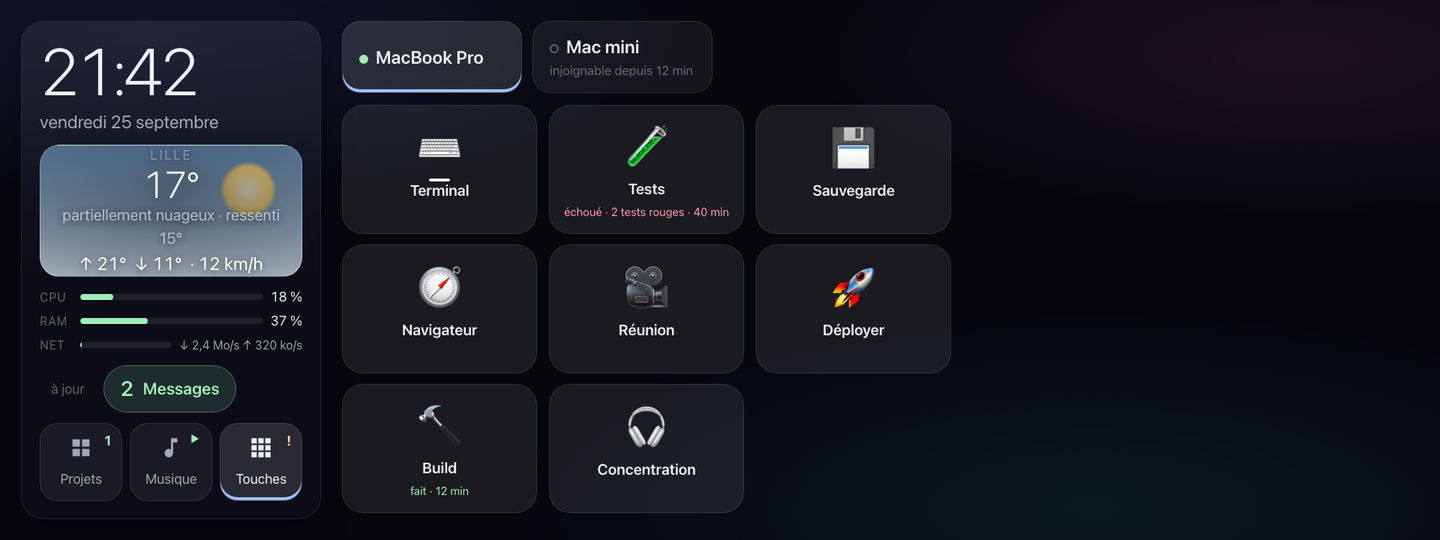
- The machine's pill
- Its name, and a solid dot if it's connected. Unreachable, the dot goes hollow and the pill says since when: “injoignable depuis 12 min” (unreachable for 12 min), or “jamais connectée” (never connected) if it has never shown up yet.
- An application key
- Its icon (the app's own), its label, and a small underline below the icon for as long as the app is open: like the dot in the Dock. Terminal, in the screenshot, carries that underline.
- A command key
- Its icon (an emoji, or a PNG), its label, and a status line: green for “fait” (done), with the result's age, red for a failure or for “2 tests rouges” (2 red tests), or “en cours…” (running…) while it executes.
2The fields
A key lives in the touches array of config.json. Six fields, two of which are mutually exclusive:
id- Lowercase letters, digits and hyphens, 1 to 32 characters:
[a-z0-9-]{1,32}. Unique within the file. Required. libelle- What the key displays, 40 characters at most. Required.
application- A bundle id (step 3). Exactly one of
applicationorcommande, never both, never neither. commande- A list of arguments (step 4), run with no shell. The first item can't be empty.
icone- An emoji, or the absolute path to a PNG (step 5). Left out for an application, its own icon is shown.
delai- In seconds, for a
commandeonly: 60 by default. An application has its own timeout, set by the screen. confirmertruefor a command that shouldn't fire on a stray touch:falseby default.
An unknown field (a typo in its name) is an error, not a field quietly ignored: see Hot reloading.
3Finding a bundle id
application expects an app identifier (a bundle id, like com.mitchellh.ghostty), not its name. Two ways to read it, with Ghostty as the example:
osascript -e 'id of app "Ghostty"'mdls -name kMDItemCFBundleIdentifier -r /Applications/Ghostty.app4A command, never a shell
commande is a list of arguments: the first is the program, launched directly, the rest are its parameters. No shell interprets them: no &&, no |, no *, no variable like $HOME. That's deliberate: config.json isn't a place to slip in a script.
For tools like that, give yourself a shell, explicitly:
"commande": ["/bin/sh", "-c", "cd ~/code/my-project && make test"]There, it's /bin/sh that interprets the string after -c: &&, ~ and the rest work, because it's sh itself that reads them.
5Absolute paths
ecran-agent is launched by launchd, not by your login shell: the first item of commande must therefore be an absolute path (/usr/bin/make, not make): with no shell, nothing searches your PATH. Same rule for a PNG icon's path: no ~, which is shell syntax, and a relative path would start from /.
What follows /bin/sh -c "…" escapes this rule: it's sh, once launched, that reads ~ and your PATH inside its own string (previous step).
6A key's states
A press moves through several states, which the key displays one after another:
- déposé (handed off)
- The screen has just forwarded the press to your machine.
- pris (picked up)
- Your machine has received it, and is about to run it.
- en cours… (running…)
- The app is launching, or the command is running.
- fait (done)
- Finished successfully, in green: stays on screen for two seconds, with the result's age.
- échoué (failed)
- Finished in failure, in red, with the detail your machine gave: stays on screen for six seconds.
- sans nouvelles (gone quiet)
- No answer within the expected time: your machine may have gone to sleep, or the command is running past its
delai. What the command is actually doing, the screen may never find out.
Independent of any press, an application key carries an underline below its icon for as long as the app is open: your machine reports this several times a minute, not only at the moment of a press.
7The limits
| Field | Limit |
|---|---|
| Keys per machine | 60 at most |
id | lowercase letters, digits, hyphens; 1 to 32 characters; unique |
libelle | 40 characters at most |
icone (emoji) | 16 bytes at most |
icone (PNG) | 64 KiB at most |
delai | 1 to 3600 seconds |
These are the protocol's own limits: your machine applies them itself before it connects, with the same code as the screen. A key that exceeds them is never sent: see Hot reloading.
8Hot reloading
Your machine watches config.json: as soon as it changes, it reads it again, with no need to restart the service. A valid config replaces the old one right away.
A faulty config — unknown field, invalid JSON, a key past a limit — replaces nothing: your earlier keys stay active, and the error travels to the screen, where it's shown under your machine's name, until you fix it and save again.
A missing or unreadable PNG icon doesn't make the config fail. Your machine tries to read it at startup, then on every reread of config.json; if the file is missing, its conversion fails, or it isn't a valid PNG, the key keeps its label, with no icon, and the log says so: “tests : pas d'icône, libellé seul” (tests: no icon, label only — with the key's id in place of tests). The path itself is only checked at that moment, not when config.json is read.
9The collection
Seventeen keys, ready to copy into the touches array of your config.json — each one checked against the agent's code before publishing.
{ "id": "terminal", "libelle": "Terminal", "application": "com.apple.Terminal" }
{ "id": "ghostty", "libelle": "Ghostty", "application": "com.mitchellh.ghostty" }
{ "id": "musique", "libelle": "Musique", "application": "com.apple.Music" }
{ "id": "obs", "libelle": "OBS", "application": "com.obsproject.obs-studio" }
{ "id": "tests", "libelle": "Tests", "icone": "🧪", "commande": ["/bin/sh", "-c", "cd ~/code/my-project && make test"], "delai": 600 }
{ "id": "build", "libelle": "Build", "icone": "🔨", "commande": ["/usr/bin/make", "-C", "/Users/me/code/my-project", "build"], "delai": 900 }
{ "id": "deployer", "libelle": "Déployer", "icone": "🚀", "commande": ["/bin/sh", "-c", "cd ~/code/my-site && ./deploy.sh"], "delai": 1800, "confirmer": true }
{ "id": "projets", "libelle": "Projets", "icone": "📁", "commande": ["/usr/bin/open", "/Users/me/code"] }
{ "id": "tableau", "libelle": "Tableau de bord", "icone": "📊", "commande": ["/usr/bin/open", "https://example.org/dashboard"] }
{ "id": "visio", "libelle": "Visio", "icone": "🎥", "commande": ["/usr/bin/open", "https://meet.example.org/team"] }
{ "id": "concentration", "libelle": "Concentration", "icone": "🎧", "commande": ["/usr/bin/shortcuts", "run", "Concentration"] }
{ "id": "muet", "libelle": "Son coupé", "icone": "🔇", "commande": ["/usr/bin/osascript", "-e", "set volume output muted true"] }
{ "id": "ecrans", "libelle": "Écrans en veille", "icone": "🌙", "commande": ["/usr/bin/pmset", "displaysleepnow"] }
{ "id": "sauvegarde", "libelle": "Sauvegarde", "icone": "💾", "commande": ["/usr/bin/tmutil", "startbackup", "--auto"], "confirmer": true }
{ "id": "lumiere", "libelle": "Lumière atelier", "icone": "💡", "commande": ["/usr/bin/curl", "-fsS", "-X", "POST", "http://192.168.1.50:8123/api/webhook/lumiere-atelier"], "delai": 10 }
{ "id": "imprimante", "libelle": "Relancer OctoPrint", "icone": "🖨️", "commande": ["/usr/bin/ssh", "pi@192.168.1.60", "sudo systemctl restart octoprint"], "delai": 30, "confirmer": true }
{ "id": "rendu", "libelle": "Rendu", "icone": "/Users/me/icons/render.png", "commande": ["/Users/me/bin/render-scene"], "delai": 3600, "confirmer": true }
Three need access to another device on your network: adapt 192.168.1.50 (Lumière atelier) and 192.168.1.60 (Relancer OctoPrint) to your own. The rest run on your Mac alone.